AudioTray: Dein Sound. Ein Klick.AudioTray: Your sound. One click.
Manage your Audiodevices
AudioTray ersetzt das Lautstärke-Symbol von Windows 11 durch ein smarteres. Es zeigt auf einen Blick, ob gerade Lautsprecher oder Kopfhörer spielen, wie laut es ist und ob der Ton stumm ist. Ein Klick öffnet Geräteauswahl, Bluetooth-Verbindungen und Lautstärke in einem kompakten Fenster.AudioTray replaces the Windows 11 volume icon with a smarter one. At a glance it shows whether speakers or headphones are playing, how loud it is and whether the sound is muted. One click opens device selection, Bluetooth connections and volume in a compact window.
Keine TelemetrieNo telemetryKeine InternetverbindungNo internet connectionKeine AdministratorrechteNo admin rights
Ein Symbol für allesOne icon for everything
Lautsprecher, Kopfhörer, Bluetooth: direkt neben der Uhr.Speakers, headphones, Bluetooth: right next to the clock.
Das ProblemThe problem
Das Windows-Lautstärkesymbol verrät nicht, welches Gerät gerade aktiv ist. Wer zwischen Monitor-Lautsprechern, Headset und Bluetooth-Kopfhörern wechselt, klickt sich durch mehrere Menüs der Windows-Einstellungen.The Windows volume icon doesn't tell you which device is active. Anyone switching between monitor speakers, a headset and Bluetooth headphones has to click through several menus in the Windows settings.
Die LösungThe solution
AudioTray bündelt alles an einer Stelle. Die App läuft unauffällig im Infobereich: kein Fenster, kein Taskleisten-Button, kein Ballast.AudioTray brings everything together in one place. The app runs quietly in the notification area: no window, no taskbar button, no bloat.
HighlightsHighlights
Alles, was man täglich mit dem Ton am PC macht, in einem Klick.Everything you do with sound on your PC every day, in one click.
Sieht, was spieltSees what's playing
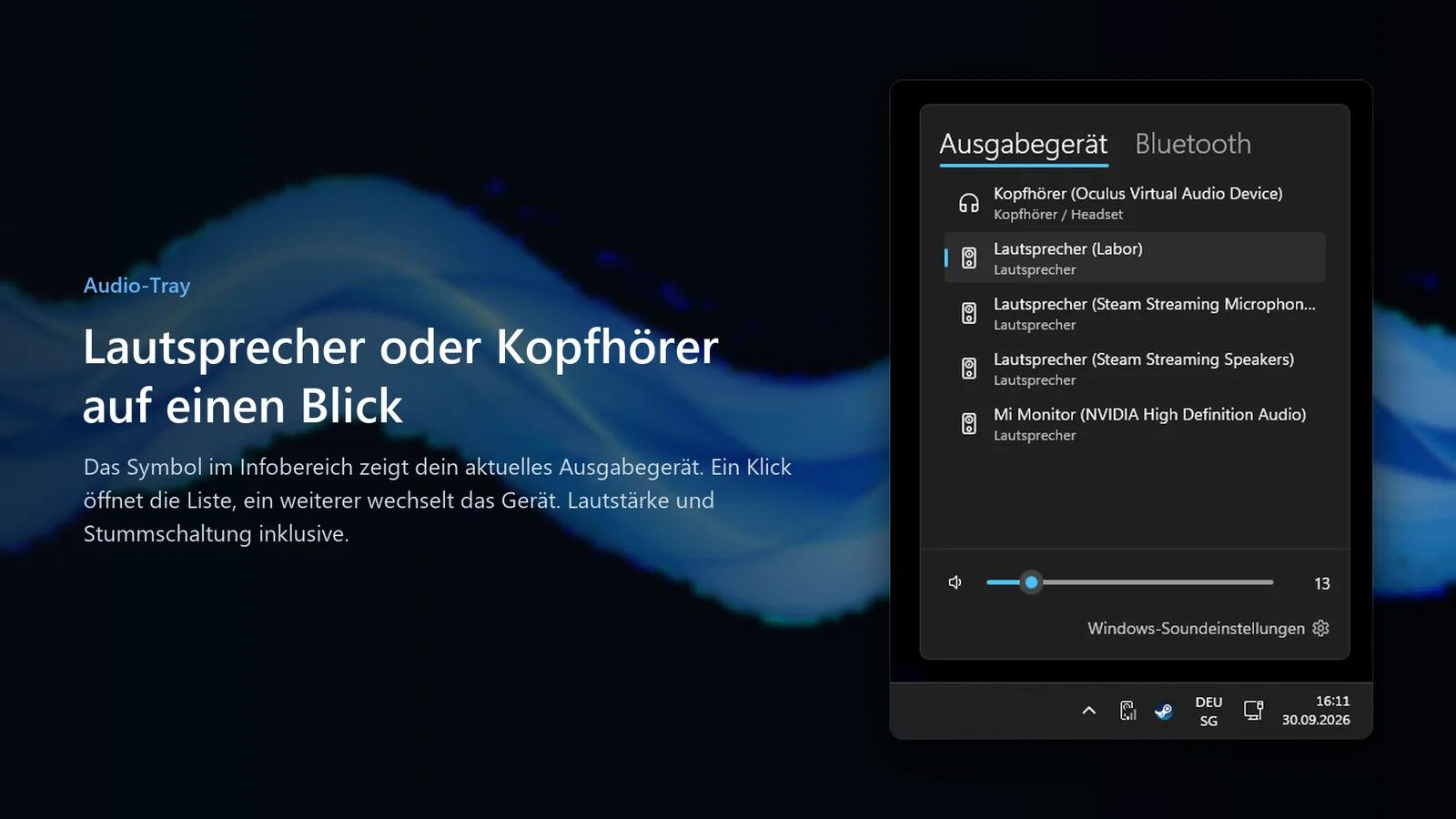
Das Symbol zeigt Lautsprecher oder Kopfhörer, die Lautstärke in drei Stufen und die Stummschaltung.The icon shows speakers or headphones, the volume in three levels and the mute state.
Gerät wechseln mit einem KlickSwitch device with one click
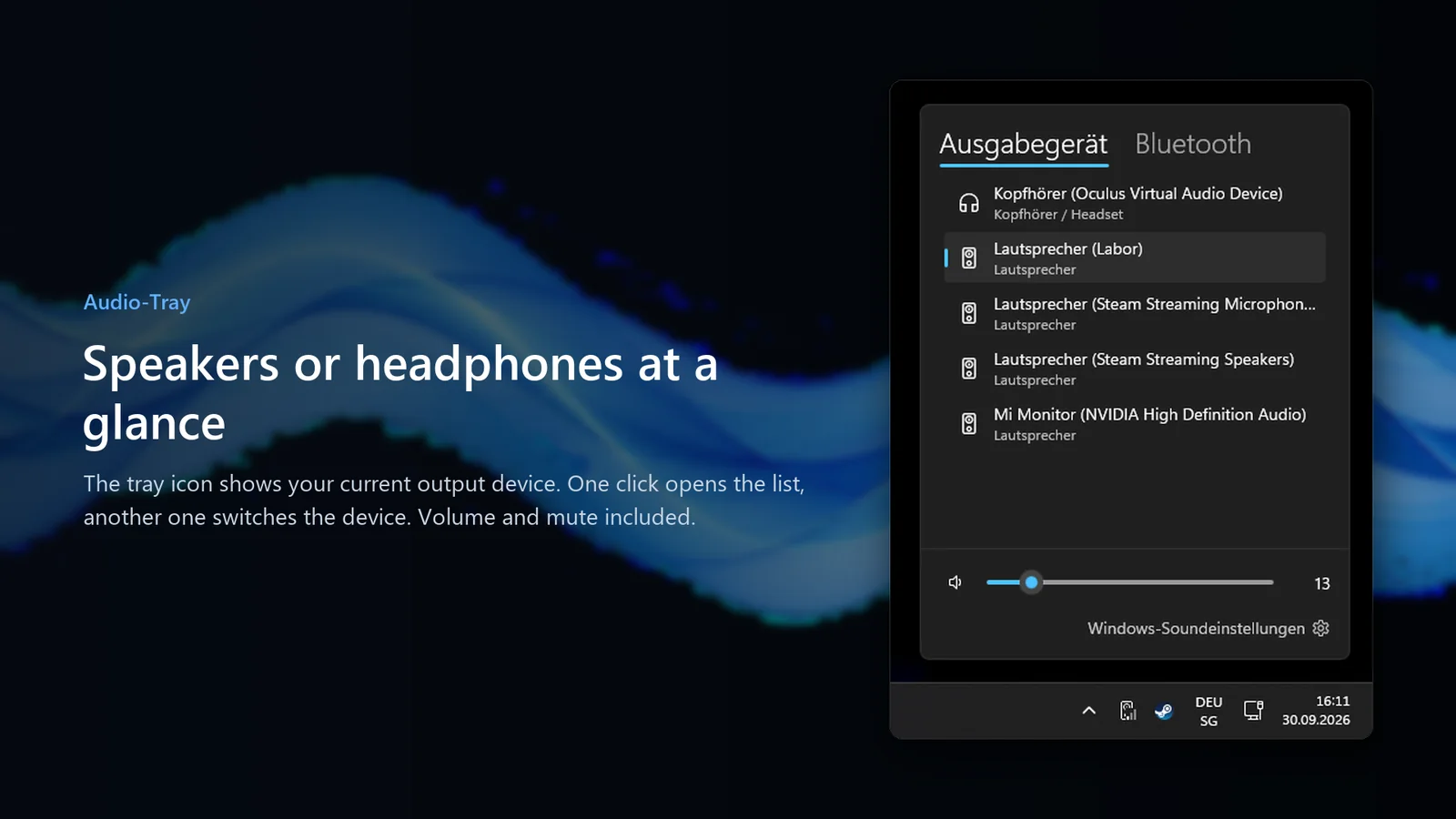
Alle aktiven Wiedergabegeräte in einer Liste. Die Auswahl wird sofort Standardgerät für Musik, Spiele und Anrufe.All active playback devices in one list. Your choice immediately becomes the default for music, games and calls.
Bluetooth ohne UmwegBluetooth without detours
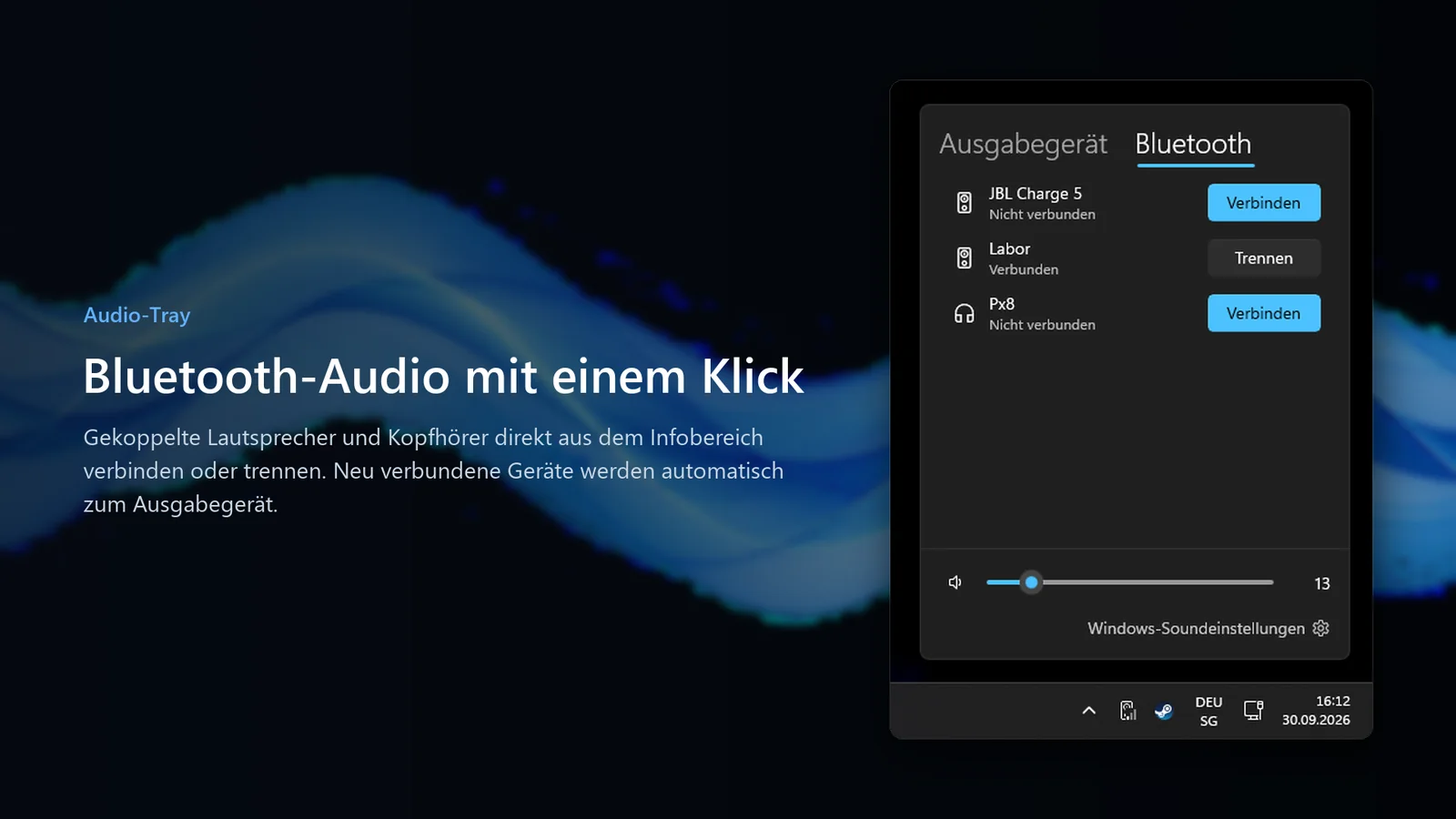
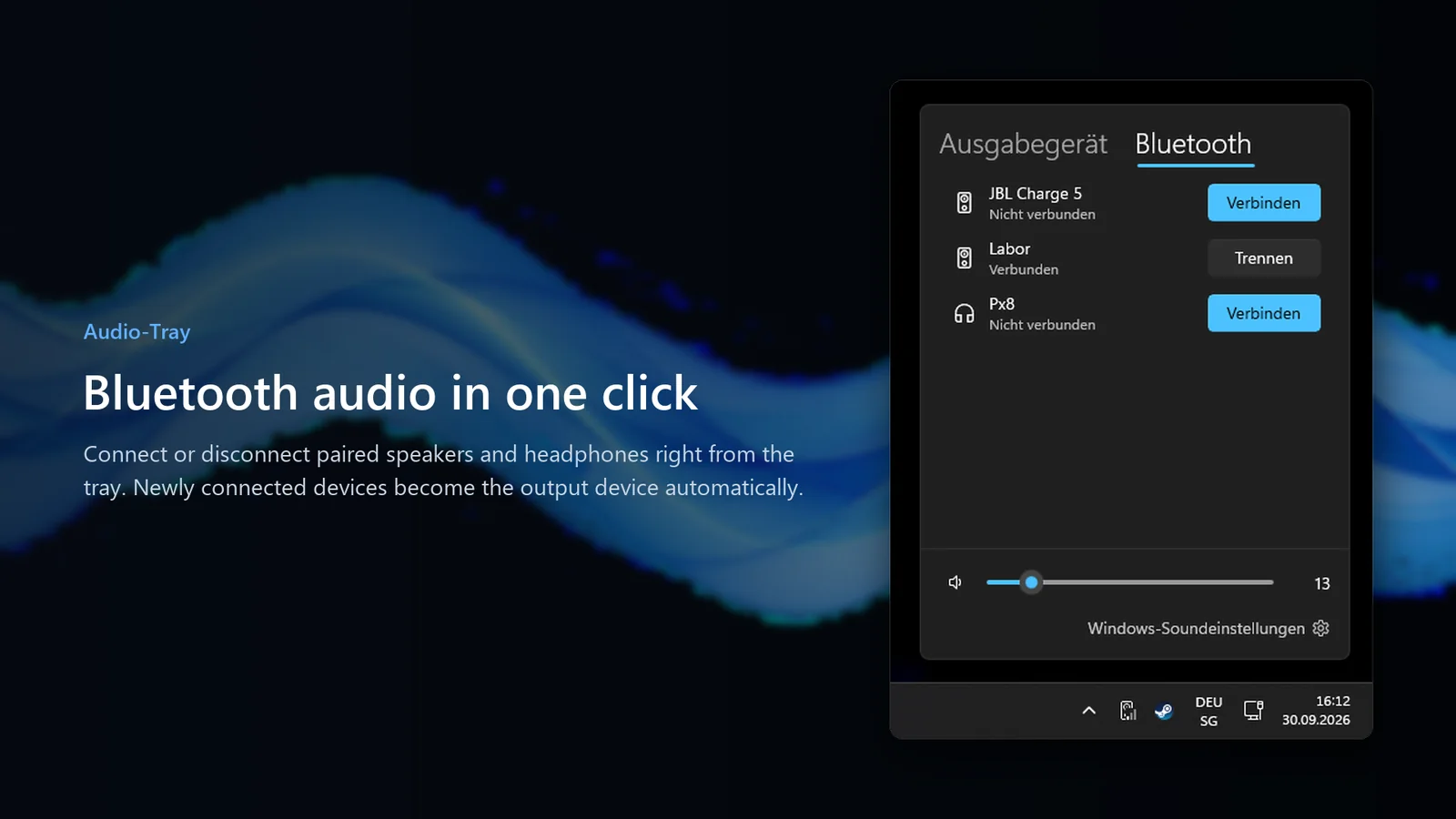
Gekoppelte Bluetooth-Kopfhörer und -Lautsprecher direkt verbinden und trennen, ohne die Windows-Einstellungen zu öffnen.Connect and disconnect paired Bluetooth headphones and speakers directly, without opening the Windows settings.
Automatisch umschaltenSwitches automatically
Verbindet sich ein Bluetooth-Gerät, spielt der Ton sofort darüber.When a Bluetooth device connects, the sound plays through it right away.
Ersetzt das Windows-SymbolReplaces the Windows icon
Blendet das eingebaute Lautstärke-Symbol aus, ganz ohne Zusatztools wie Windhawk.Hides the built-in volume icon, without add-on tools such as Windhawk.
Nahtlos in Windows 11Seamless in Windows 11
Modernes Fluent-Design, hell und dunkel, gleiche Strichstärke wie die Systemsymbole.Modern Fluent design, light and dark, same stroke weight as the system icons.
Alle Funktionen im DetailAll features in detail
Symbol im InfobereichTray icon
Zeigt den Typ des Standard-Wiedergabegeräts: Lautsprecher oder Kopfhörer/Headset.
Lautstärke in drei Balken: 0 % = keiner, bis 33 % = einer, bis 67 % = zwei, darüber drei.
Stumm: Ein kleines Kreuz ersetzt die Balken.
Weiss auf dunkler, schwarz auf heller Taskleiste; wechselt automatisch mit dem Windows-Design.
Scharf bei jeder Bildschirmskalierung (DPI-aware).
Tooltip: Gerätetyp, Lautstärke in % bzw. „stumm“ und Gerätename.
Aktualisiert sich sofort bei Gerätewechsel, Ein- oder Ausstecken und Lautstärkeänderungen, auch von aussen (Lautstärketasten, andere Apps).
Optional immer sichtbar: Das Symbol bleibt direkt in der Taskleiste statt im Überlauf-Menü (^).
Shows the type of the default playback device: speakers or headphones/headset.
Volume in three bars: 0 % = none, up to 33 % = one, up to 67 % = two, above that three.
Muted: a small cross replaces the bars.
White on a dark, black on a light taskbar; follows the Windows theme automatically.
Sharp at any display scaling (DPI-aware).
Tooltip: device type, volume in % or "muted", and the device name.
Updates instantly on device changes, plugging in or out and volume changes, including external ones (volume keys, other apps).
Optionally always visible: the icon stays directly in the taskbar instead of the overflow menu (^).
Audio-Panel (Linksklick)Audio panel (left click)
Kompaktes Fenster unten rechts über dem Infobereich: feste Grösse, ohne Titelleiste, abgerundete Ecken, hell/dunkel nach der Windows-Einstellung.
Schliesst bei Klick daneben, bei erneutem Klick aufs Symbol oder mit Esc.
Seite „Ausgabegerät“: alle aktiven Wiedergabegeräte mit Symbol, Name und Typ. Ein Klick macht das Gerät zum Windows-Standard für alle Rollen.
Seite „Bluetooth“: alle gekoppelten Bluetooth-Audiogeräte mit Verbindungsstatus und einem Knopf „Verbinden“ bzw. „Trennen“, mit Fortschrittsanzeige und Meldung bei Fehlern.
Fester Fussbereich: Lautstärkeregler mit Prozentanzeige, Stumm-Knopf, Bestätigungston beim Loslassen des Reglers und Link zu den Windows-Soundeinstellungen.
Compact window at the bottom right above the notification area: fixed size, no title bar, rounded corners, light/dark following the Windows setting.
Closes on a click elsewhere, on another click on the icon, or with Esc.
"Output device" page: all active playback devices with icon, name and type. One click makes the device the Windows default for all roles.
"Bluetooth" page: all paired Bluetooth audio devices with connection status and a "Connect" / "Disconnect" button, with progress display and an error message if something fails.
Fixed footer: volume slider with percentage, mute button, confirmation sound when releasing the slider and a link to the Windows sound settings.
Bluetooth-AutomatikBluetooth automation
Verbindet sich ein Bluetooth-Lautsprecher oder -Headset, wird er automatisch zum Standard-Ausgabegerät.
Greift nur beim Musikprofil (A2DP/Stereo), nicht beim Freisprechprofil. So landet Musik nie im schlechteren Telefonie-Kanal.
In den Einstellungen abschaltbar.
When a Bluetooth speaker or headset connects, it automatically becomes the default output device.
Only applies to the music profile (A2DP/stereo), not the hands-free profile, so music never ends up in the poorer telephony channel.
Can be turned off in the settings.
Windows-Lautstärkesymbol ausblendenHide the Windows volume icon
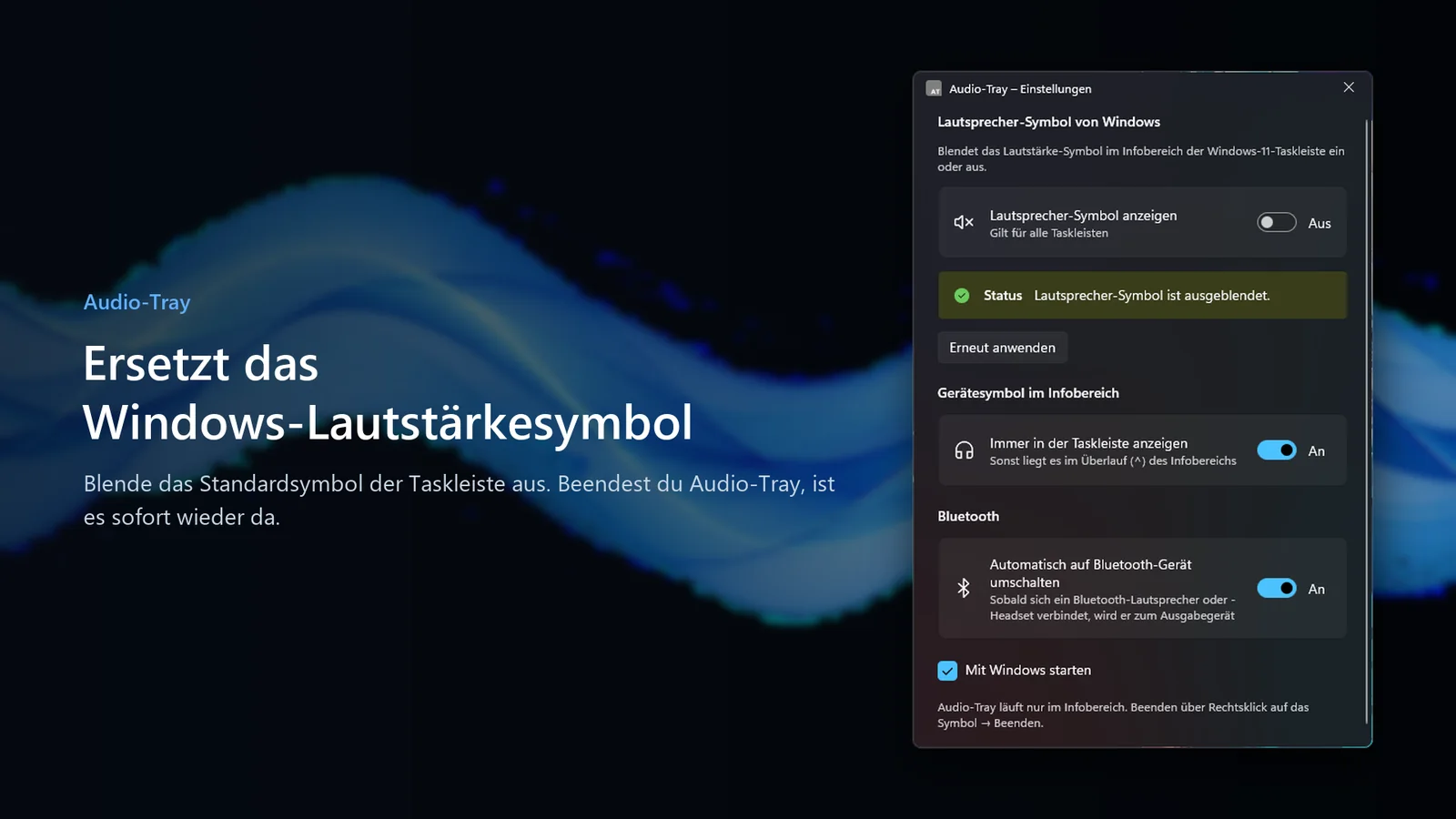
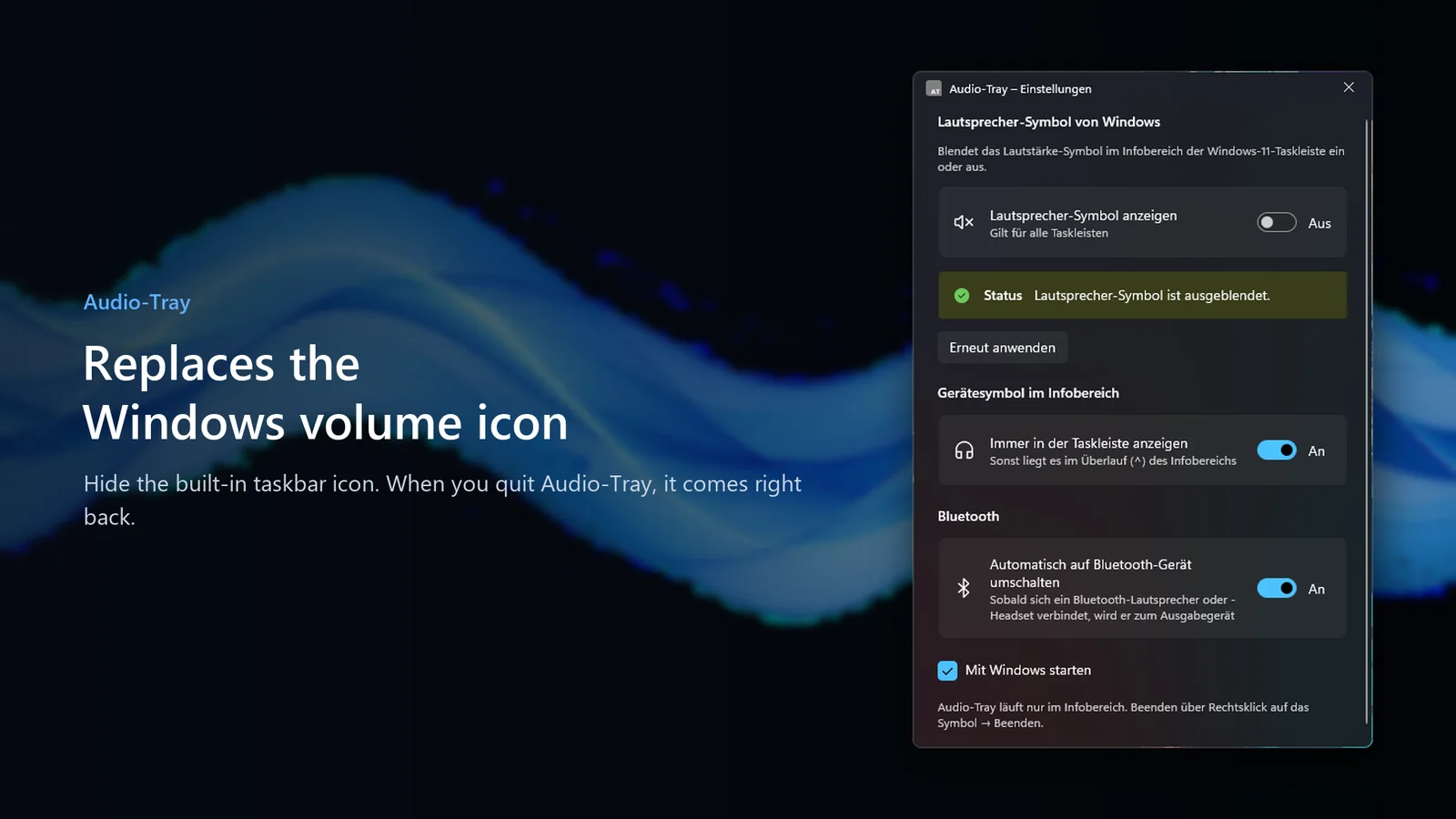
Blendet das eingebaute Lautstärkesymbol von Windows 11 aus oder wieder ein. Das AudioTray-Symbol übernimmt seinen Platz.
Wirkt auf alle Taskleisten, auch bei mehreren Monitoren.
Wird nach einem Neustart des Windows-Explorers automatisch wieder angewendet.
Die Einstellungen zeigen den Status an und bieten die Schaltfläche „Erneut anwenden“.
Windhawk muss nicht installiert sein.
Hides or restores the built-in Windows 11 volume icon. The AudioTray icon takes its place.
Works on all taskbars, including multi-monitor setups.
Re-applied automatically after Windows Explorer restarts.
The settings show the status and offer a "Re-apply" button.
Windhawk does not need to be installed.
Rechtsklick-Menü & EinstellungenRight-click menu & settings
Rechtsklick-Menü: Einstellungen …, About, Beenden (im Dunkelmodus als dunkles Menü).
Lautsprecher-Symbol von Windows anzeigen (an/aus), inklusive Statusanzeige.
Symbol immer in der Taskleiste anzeigen.
Automatisch auf Bluetooth-Gerät umschalten.
Mit Windows starten.
Eigenes, schliessbares Fenster, zentriert auf dem Bildschirm.
Right-click menu: Settings …, About, Exit (as a dark menu in dark mode).
Show the Windows speaker icon (on/off), including a status display.
Always show the icon in the taskbar.
Switch automatically to a Bluetooth device.
Start with Windows.
Its own closable window, centred on the screen.
Komfort & SystemintegrationComfort & system integration
Reine Infobereich-App: kein Fenster beim Start, kein Taskleisten-Button, nicht in Alt+Tab.
Nur eine Instanz: Ein erneuter Start öffnet die Einstellungen der laufenden Instanz.
Fehlermeldungen erscheinen als kurze Windows-Benachrichtigung statt als Dialog.
Erster Start: Ein Hinweis erklärt, dass die App im Infobereich läuft.
Kommandozeile:--settings öffnet die Einstellungen, --hide / --show blenden das Windows-Symbol aus oder ein und beenden die App.
Ressourcenschonend: reagiert auf Windows-Ereignisse, statt ständig abzufragen.
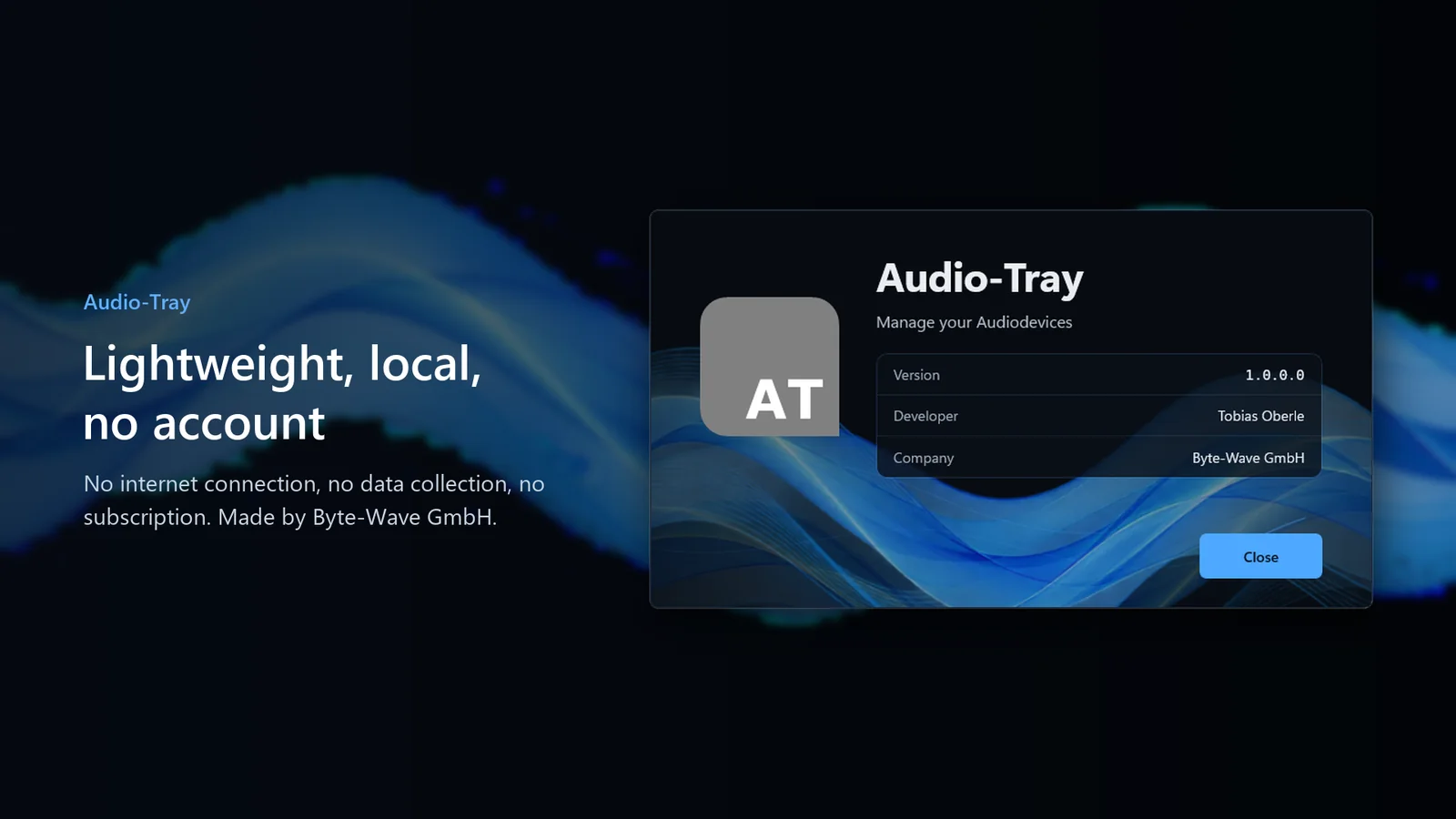
About-Dialog mit animiertem Wellen-Hintergrund und pulsierendem App-Icon; die Animationen folgen der Windows-Einstellung „Animationseffekte“.
Pure tray app: no window at startup, no taskbar button, not in Alt+Tab.
Single instance: starting it again opens the settings of the running instance.
Error messages appear as a short Windows notification instead of a dialog.
First start: a notice explains that the app runs in the notification area.
Command line:--settings opens the settings, --hide / --show hide or show the Windows icon and exit the app.
Resource-friendly: reacts to Windows events instead of polling constantly.
About dialog with an animated wave background and a pulsing app icon; the animations follow the Windows "Animation effects" setting.
Bedienung auf einen BlickControls at a glance
Linksklick aufs SymbolLeft-click the icon
Audio-Panel öffnen/schliessenOpen/close the audio panel
 Windows 11 · Infobereich-AppWindows 11 · Tray app